Features
Every screen, every feature.
ElseScreen screen by screen, on iPhone, iPad, and Mac. The pictures show the app's own screens, with made-up desktops in place of anyone's real one.
The session
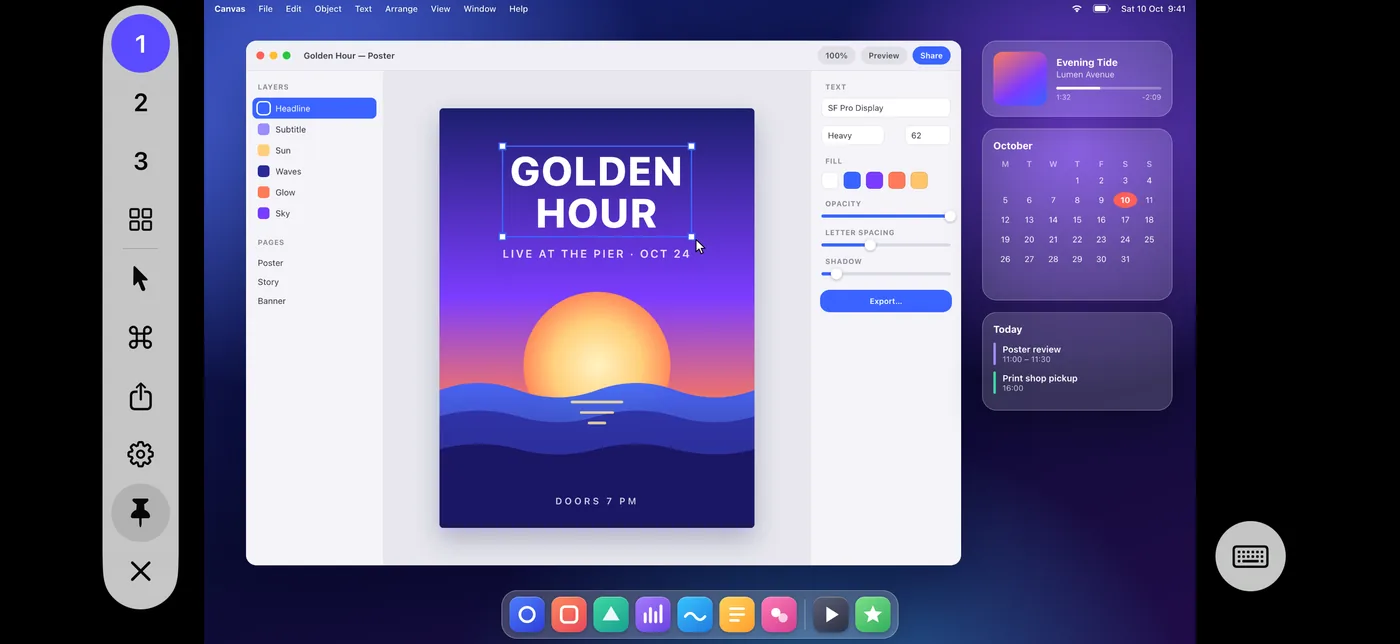
Your Mac's display fills the screen, and the controls wait in the margin beside it.
- The controls hide by themselves, or stay put once pinned.
- Display buttons switch between your Mac's displays, and All Displays shows them all.
- Your device draws the Mac's pointer itself, so it moves the moment your finger does.
- Up to 120 frames a second on ProMotion displays, easing off when the network slows.
- After a Wi-Fi drop or a trip to another app, it reconnects by itself.
The keyboard
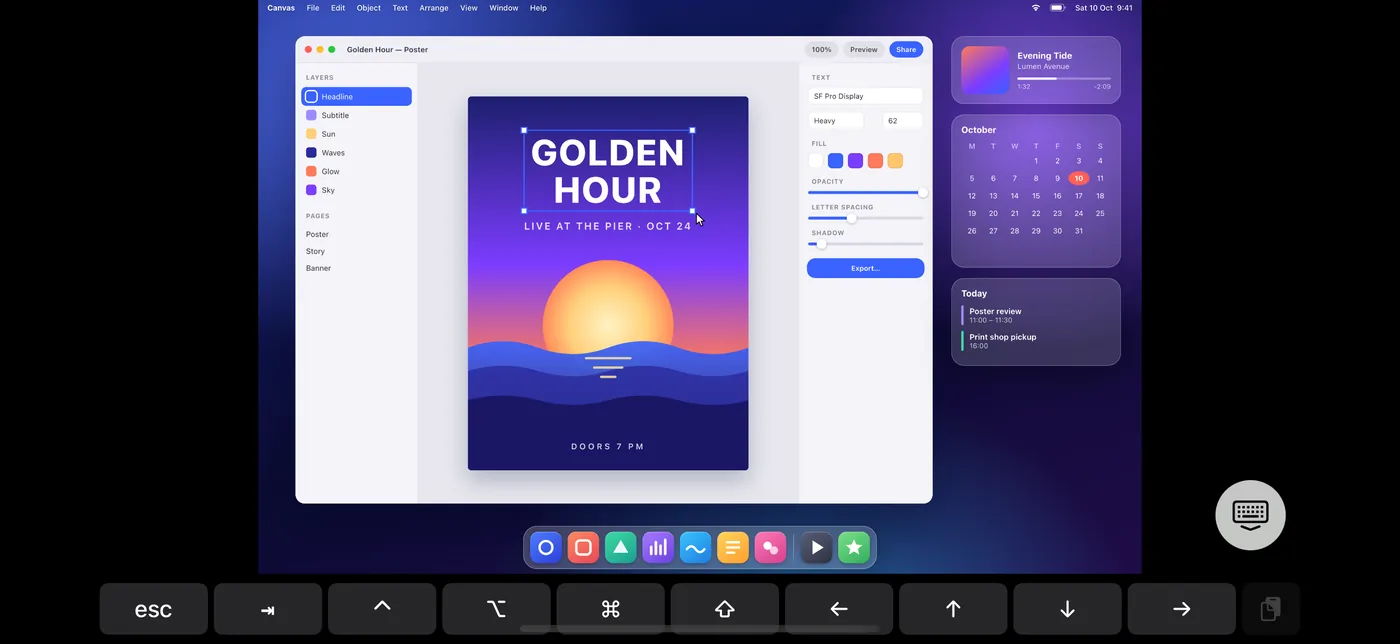
Type on the Mac in any language, with the keys a Mac needs and iPhone keyboards don't have.
- The key bar has Esc, Tab, and the arrows, and ⌃ ⌥ ⇧ ⌘ stay down for the next key you type.
- Your text arrives as text, whatever the Mac's keyboard layout.
- Click where you can type on the Mac, and the keyboard opens by itself.
- Paste puts your device's clipboard on the Mac, and what the Mac copies arrives on your device by itself.
- Type Text sends a long passage at once, and Type a Password types a saved password without copying it.
- A hardware keyboard works too.
Mac shortcuts
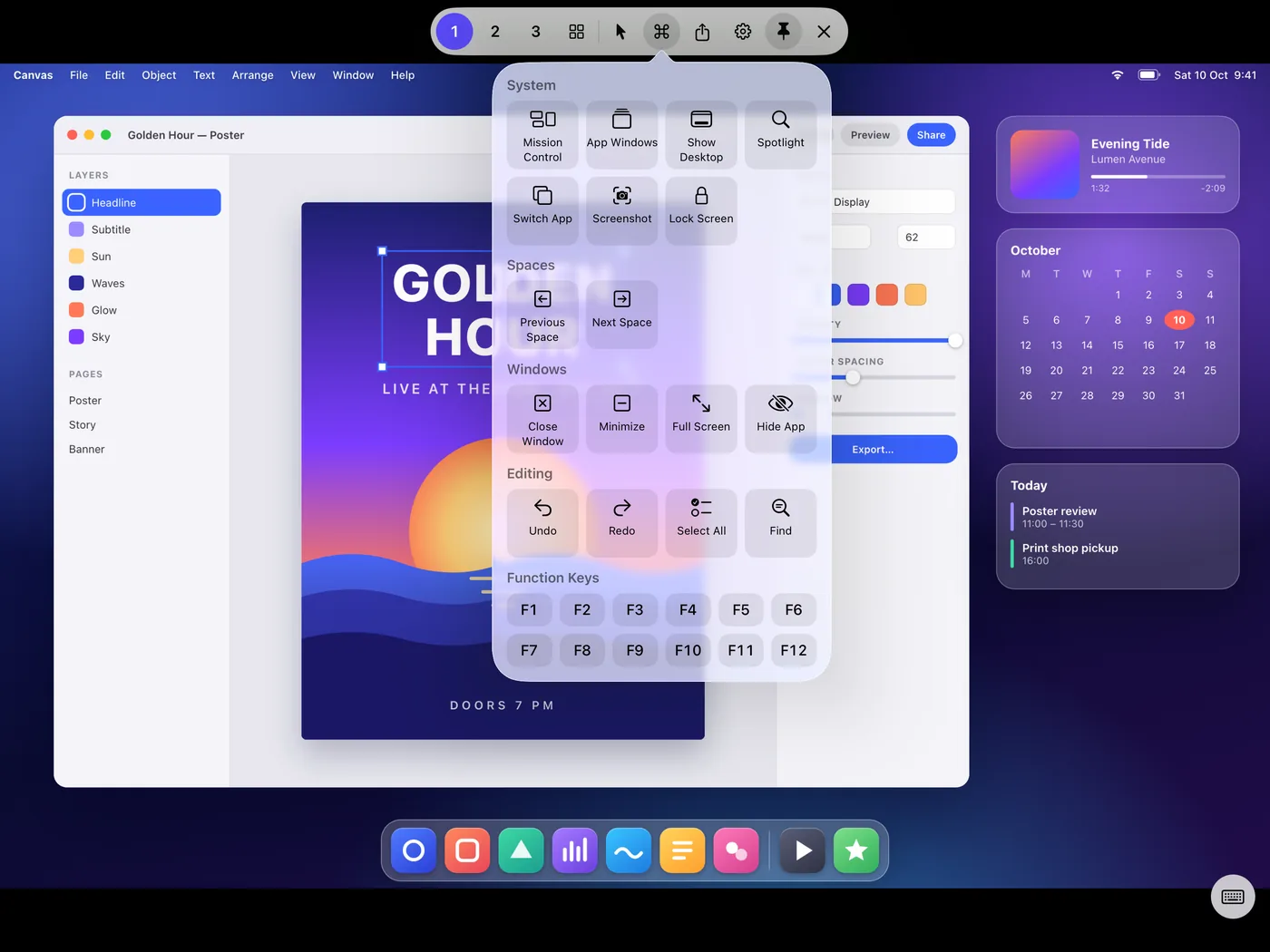
The ⌘ button opens what you'd otherwise press on a Mac's keyboard.
- Mission Control, App Windows, Show Desktop, Spotlight, Switch App, Screenshot, and Lock Screen.
- The previous and next Space, and closing, minimizing, filling the screen with, or hiding a window.
- Undo, Redo, Select All, Find, and F1 to F12.
- When a shortcut opens something on another display, the view follows it there.
All Displays
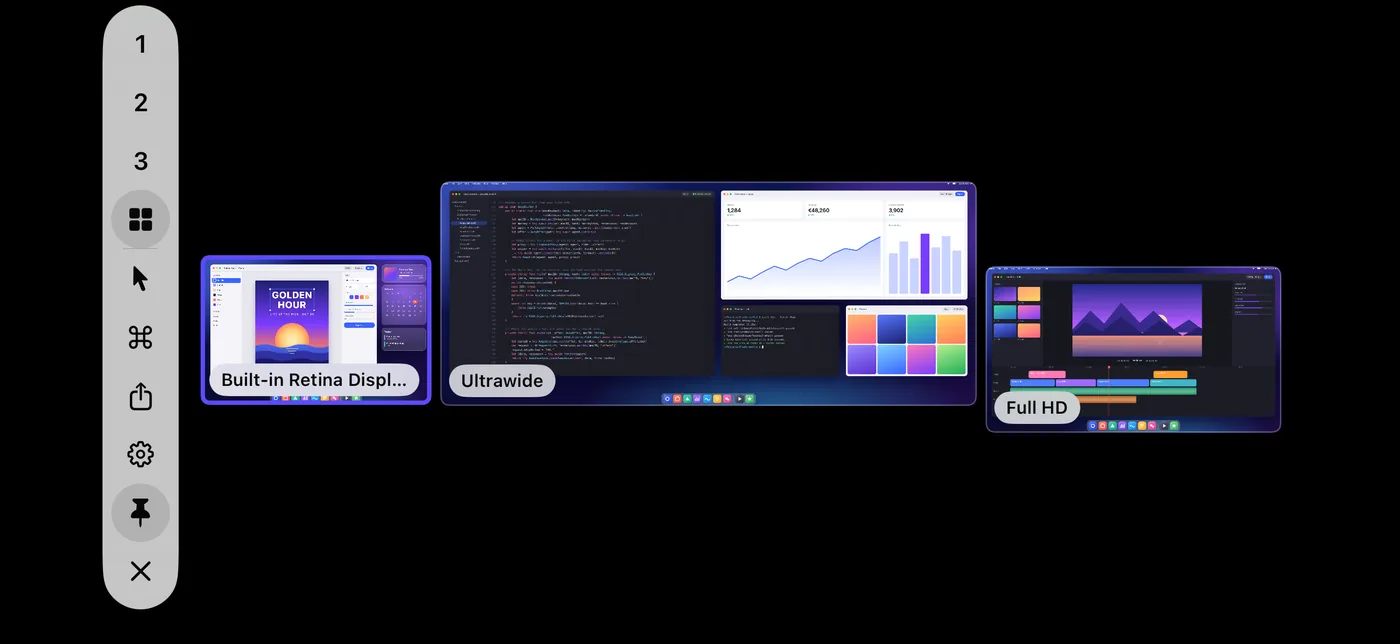
Every display your Mac has, at once and live, laid out as they sit on your desk.
- Tap a display to open it.
- The previews update a few times a second, so the display you're using keeps the full stream.
- Give a display a name of your own, so “Display 2” becomes “Studio”.
- In Trackpad mode, push the pointer past an edge to move on to the display beyond, as on the Mac.
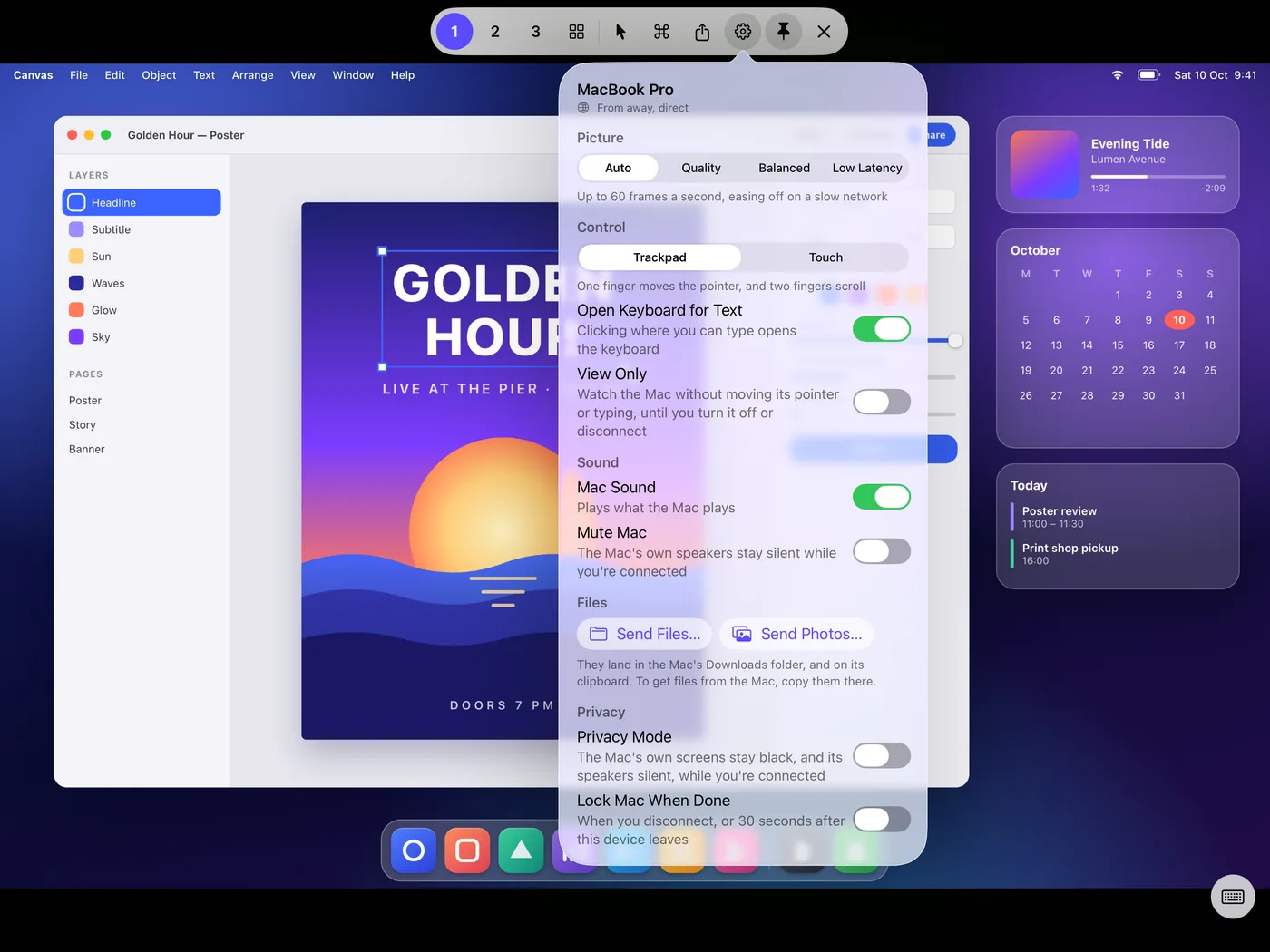
Settings, mid-session
Everything about the session, a tap away while you work.
- Auto, Quality for your display's own resolution and the sharpest text, Balanced, or Low Latency.
- Trackpad or Touch, and whether the keyboard opens by itself.
- View Only, to watch the Mac without moving its pointer or typing.
- Your Mac's sound on your device, or Mute Mac to keep its speakers quiet.
- Privacy Mode, and Lock Mac When Done.
- How you're connected: at home, from away directly, or through the relay.
Files
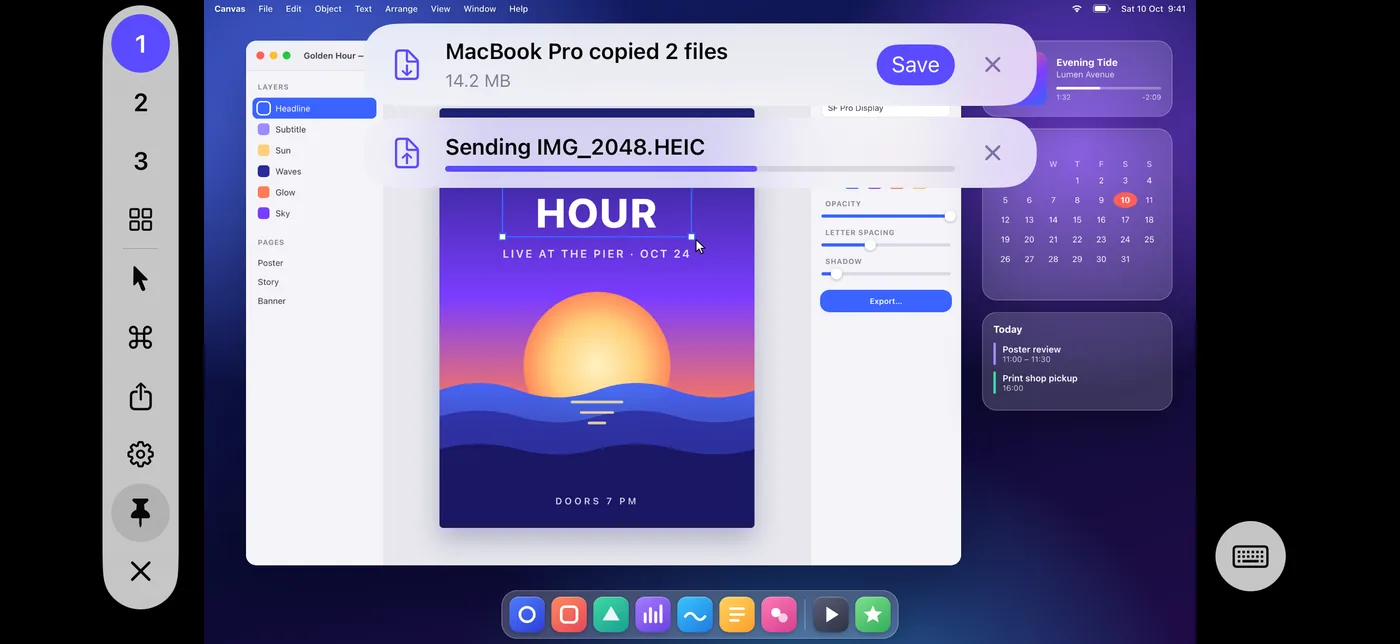
Files and photos move between your device and your Mac, both ways.
- Send Files and Send Photos put them in your Mac's Downloads folder, and on its clipboard, ready to paste.
- On iPad, drop files on the session.
- Copy files in Finder, and Save them on your device, in ElseScreen's folder in the Files app.
- Or choose ElseScreen in Finder's Share menu. Folders travel as zips.
On iPad
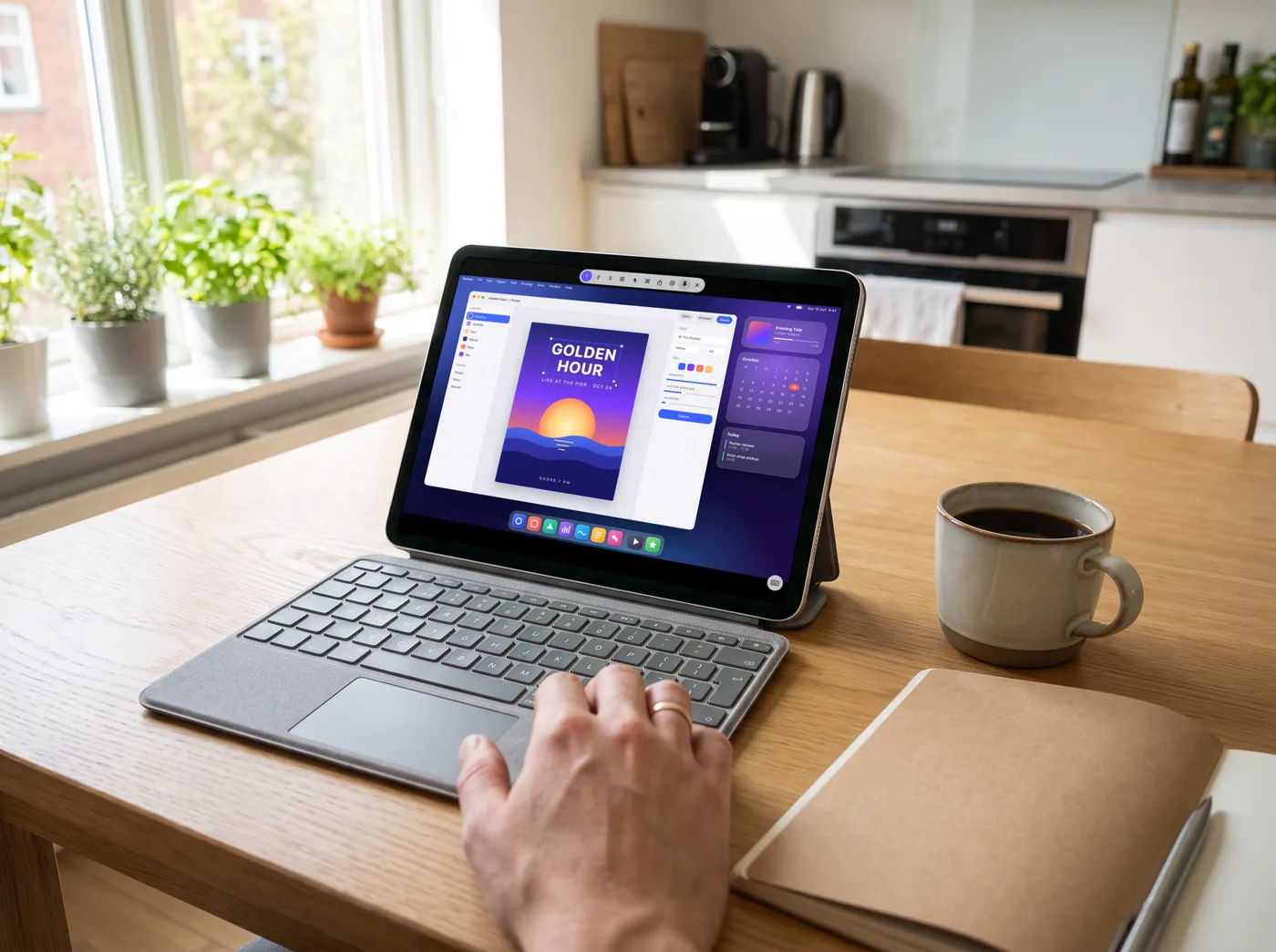
A bigger screen, and every way an iPad can point.
- A mouse or trackpad moves the Mac's pointer directly, and clicks, drags, and scrolls as on a Mac.
- Lock the pointer for games and 3D apps, with ⌃⌥⌘L or from the Session menu.
- Apple Pencil clicks and drags where it touches, and moves the pointer as it hovers. Squeeze or double-tap to right-click.
- Open a window for each of your Macs, and use them at the same time.
From away
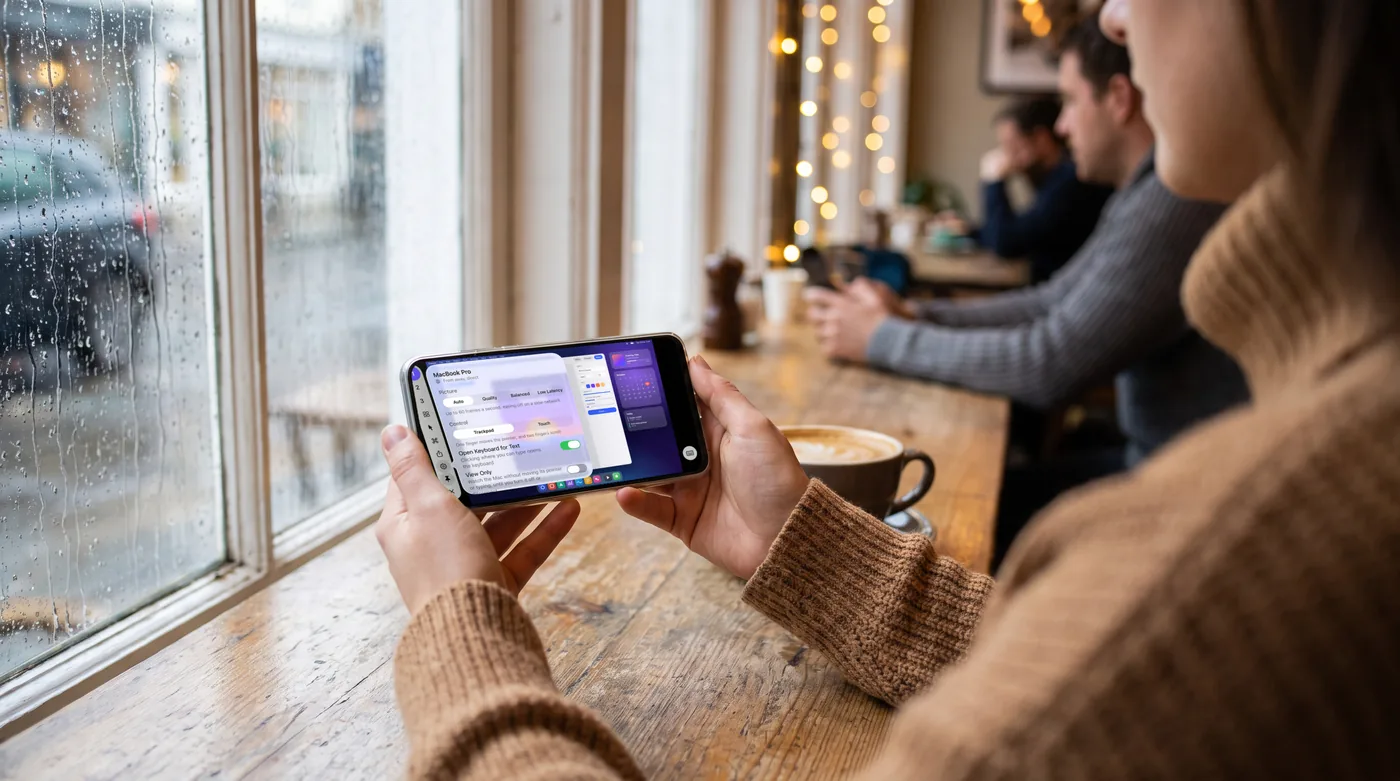
Your Mac at home, from anywhere with an internet connection.
- Turn on Allow Access from Away in ElseScreen Host, and your paired devices can reach it.
- No port forwarding, and no account to sign in to.
- Your devices connect directly where the networks allow, and through a relay where they don't. The relay passes along encrypted traffic it can't read.
- A sleeping Mac on the same network wakes from the app when it's plugged in.
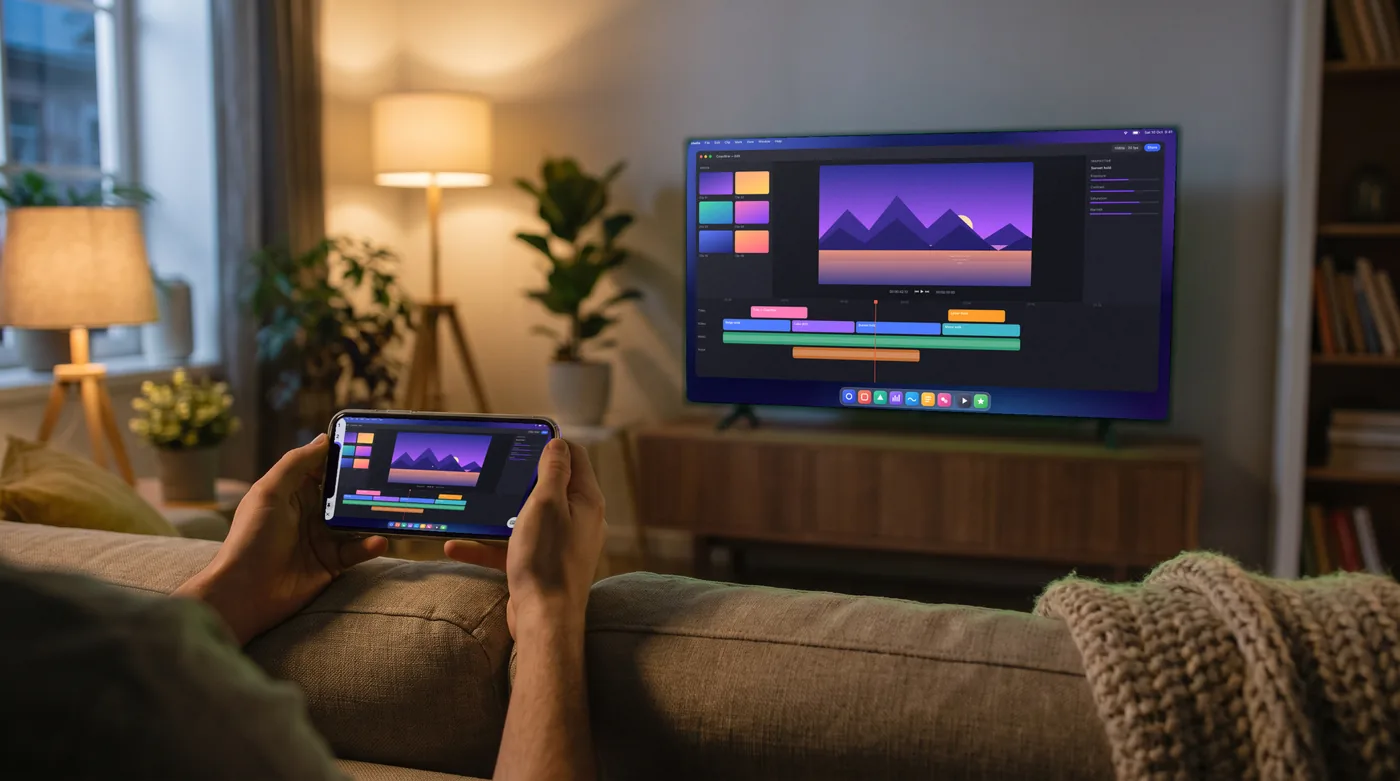
On a TV
Your Mac on the big screen, with your device in your hand as its trackpad and keyboard.
- Connect your iPhone or iPad to a TV or display by cable, or with AirPlay.
- The Mac's display fills the TV, with its pointer.
- Switch displays, zoom, and type as usual on your device.
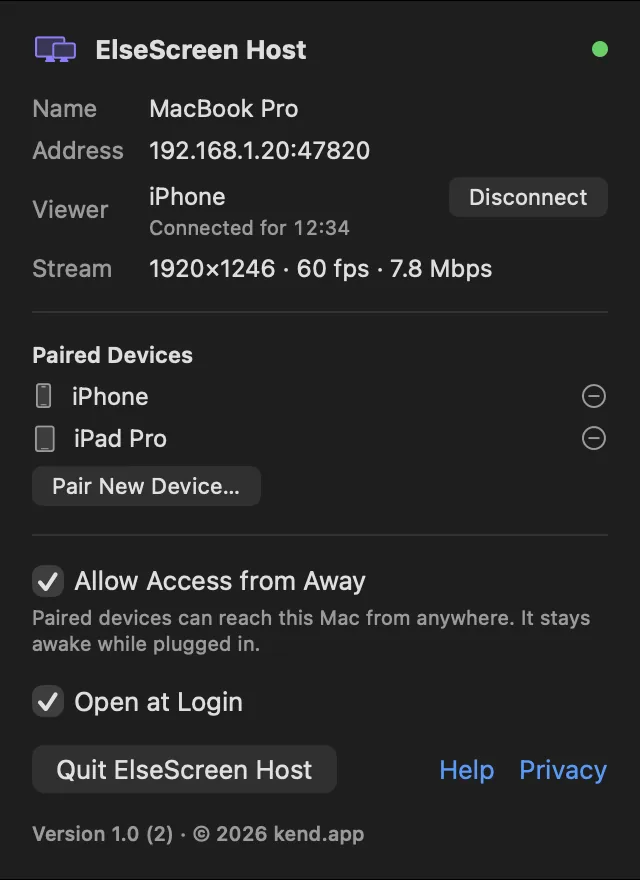
ElseScreen Host
The Mac app that shares your screen, and only with the devices you paired.
- It lives in the menu bar, and asks once for Screen Recording, Accessibility, and Local Network, showing where each one stands.
- It shows which device is connected and how the stream is doing, and ends a session with one click.
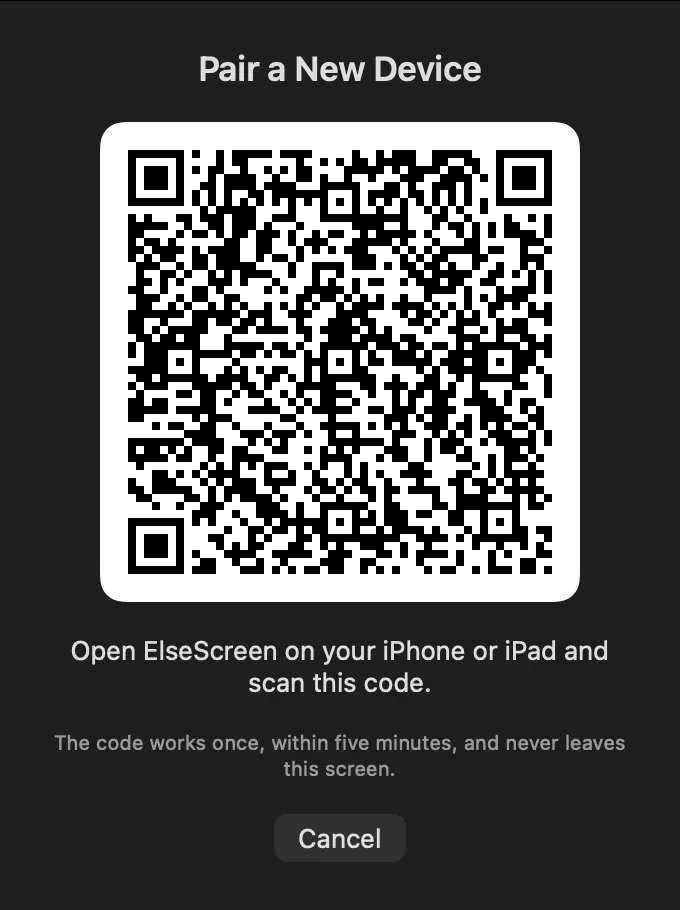
- Pair a device with a code that works once, for five minutes, and never leaves the screen.
- Remove a device, and it can't connect again.
- It keeps your displays awake during a session, and can open at login.
And the rest.
Shortcuts, Siri, and widgets
Connect to a Mac from a widget or with Siri. In the Shortcuts app, Connect to Mac can open a chosen display with Privacy Mode on, and Wake Mac wakes a sleeping one.
Privacy Mode
Your Mac's screens go black, its speakers go quiet, and its own keyboard and mouse stay still, until you're done.
Locks
Your Mac can lock itself when you disconnect, and Face ID can lock the app.
For everyone
Works with VoiceOver, Dynamic Type, and Reduce Motion, in English, German, Spanish, French, Italian, Japanese, Korean, Russian, and Simplified Chinese.
Questions? Support has answers, or write to support@elsescreen.com.